Tasks View
The Tasks view in Dashboard Legal provides an alternate view for an individual to see and manage all of their assigned tasks from a single location.
These are the same tasks found within individual Checklists, but this view enables users to quickly assess their current and upcoming workloads and ensure that key deadlines are met. Note: The Organizational Layout section of this Help Center provides a comprehensive explanation of Tasks and where they fit within Dashboard Legal’s project management framework.
Access: The Tasks (“My Tasks”) view is located on the left menu just below Boards.
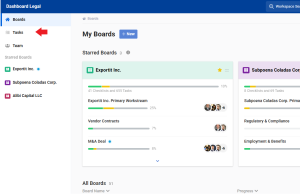
Display: Clicking on Tasks will take you to this page:
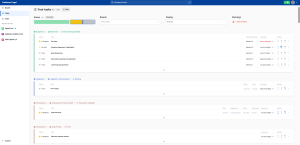
Key Features: This simple to use page provides the following capabilities to help you keep track of and mange your tasks from.
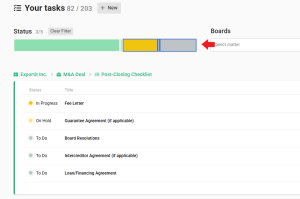
Task Status Filter: Use the color-coded status bar to filter tasks by their current state. Available statuses include:
- To Do
- On Hold
- In Progress
- Abandoned
- Done
You can easily clear filters using the “Clear Filter” option. By default, the Task View is filtered to show only In Progress, On Hold, and To Do tasks so you can quickly identify which tasks require your attention. However, you can click on any of the available status filters to update what’s shown in the list.
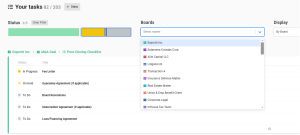
Board Filter: The “Boards” dropdown allows you to filter tasks by specific boards, helping you focus on particular projects or clients.
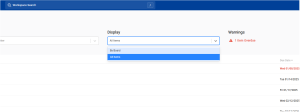
Display Options: The “Display” dropdown offers two organization methods:
- By Board (default): Groups tasks under their respective boards and workstreams.
- All Items: Sorts tasks chronologically, helping you prioritize based on upcoming deadlines.
Task Details: For each task, you can view and manage:
- Status
- Title
- Custom fields (e.g., “questions,” “depo scheduled?”)
- Due Date
- Action buttons for quick task management
Hierarchical View: Tasks are displayed within their board and workstream hierarchy, providing context for each item.
New Task Creation: The “+ New” button at the top allows you to create new tasks directly from this view and connect it to the relevant Boards, Workstreams, and Checklists.