Organizational Layout
Overview
Dashboard Legal is organized around a simple four-level structure:
Boards → Workstreams → Checklists → Tasks
This structure defines where work lives. Widgets on Boards and Workstreams let you control how work is displayed, so each workspace matches how you work.
Boards
Boards are the highest level of organization. Most commonly, a Board represents a client, but Boards are flexible and can be used in other ways.
Common Board structures
- Client-based (most common)
One Board per client, with Workstreams representing matters.
- Matter-based
One Board for a large matter, with Workstreams for major components.
Example: Litigation A → Discovery, Motions, Expert Work
- Transaction-based
One Board per transaction, with Workstreams for functional or regulatory tracks.
Example: Transaction B → Primary, Antitrust, Tax
- Team or project-based
Boards can also represent internal teams or projects, which is useful for non-lawyer or in-house users.
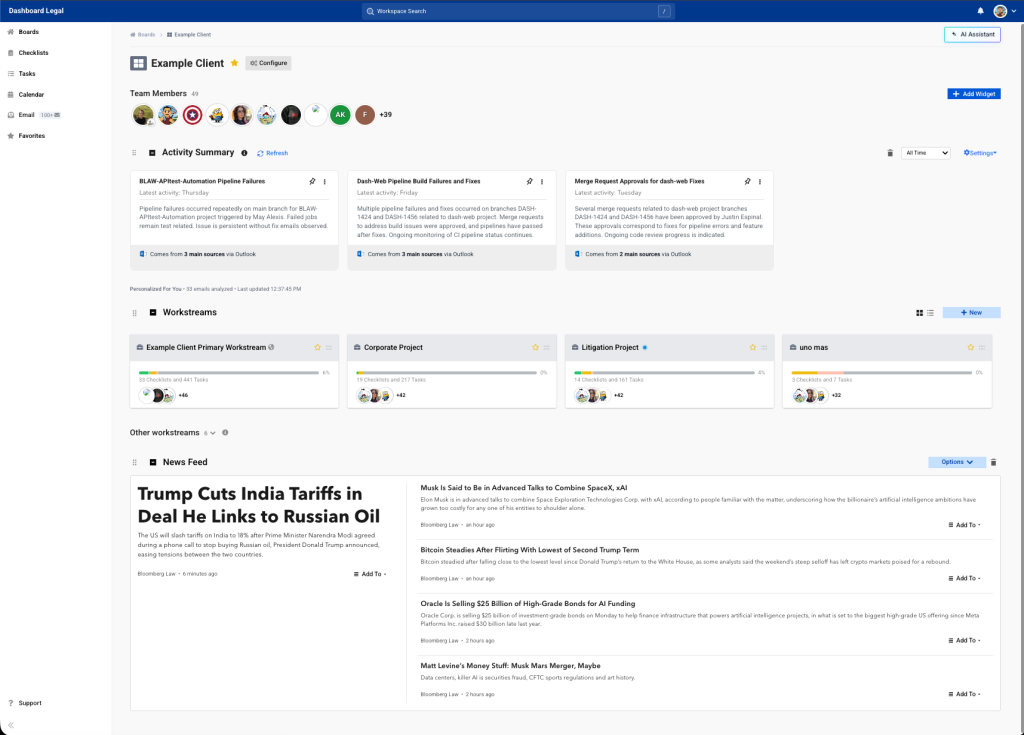
Default Board Setup
Every Board includes a Primary Workstream by default.
The Primary Workstream acts as a catch-all for work that does not yet belong to a specific matter or component. You can rename it, add additional Workstreams, or reorganize work at any time.
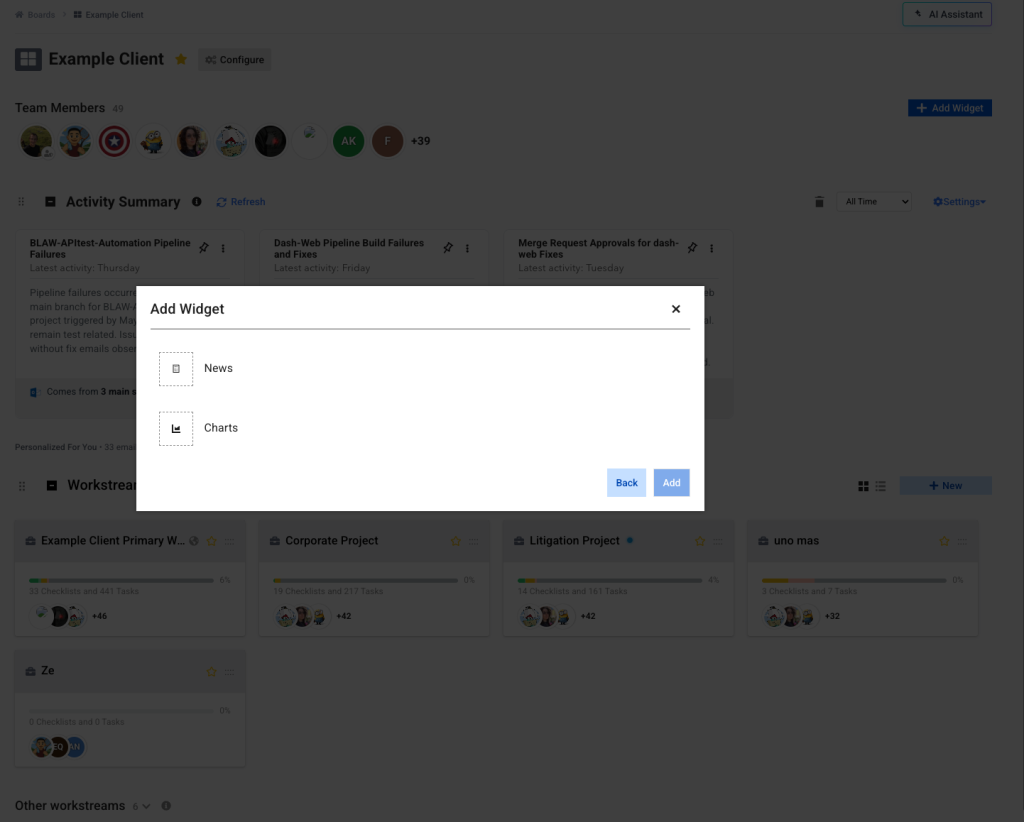
Board Widgets
Boards surface information through widgets such as:
- Workstreams
- Interlink
- News / Awareness
- Charts
- Documents
- Checklists
You can enable or disable widgets per Board (and per Workstream) to reduce clutter and focus on what matters.
Good to know
- Hiding a widget does not delete data
- Widget visibility is saved per Board
- Widgets can be re-enabled at any time
Workstreams
Workstreams live inside Boards and organize work into meaningful segments.
Most commonly:
- In client Boards, Workstreams represent matters
- In matter Boards, Workstreams represent components or phases
- In team Boards, Workstreams represent projects or initiatives
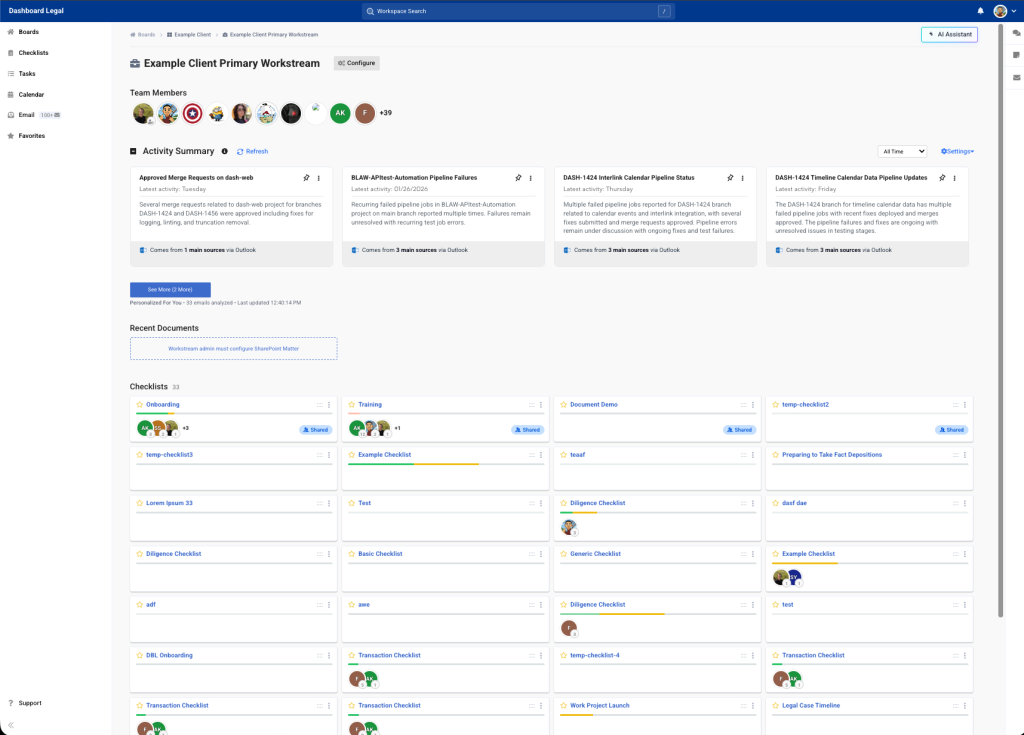
Default Workstream Setup
Every Workstream is created with Docs and Checklists enabled by default so you can start working immediately.
These defaults are flexible:
- Docs and Checklists can be hidden or shown
- Additional widgets such as Interlink, Charts, or News can be enabled
- Each Workstream can be configured independently
Checklists and Tasks
- Checklists organize structured work inside Workstreams
- Tasks are the individual actions within Checklists
Tasks appear across Dashboard Legal in views like Tasks, Team View, and Charts, providing visibility without duplication.
Key Takeaways
- Boards define the highest level of organization
- Workstreams break work into matters, components, or projects
- Checklists and Tasks track execution
- Widgets control what you see, not what exists
- Defaults help you get started quickly, but everything is configurable