User Account Management
Managing the users now happens in a new Bloomberg Industry Group Customer Admin Portal.
If you are unable to access this tool, please reach out to the administrator at: hburdette@bloombergindustry.com
Customer Admin Portal (account admins only)
URL: https://profile.bloombergindustry.com/cpoc
To add a user:
Start on the Manage Products tab and select the product you would like to update in the Select Your Product dropdown.
This will populate the subscription available to you. When it appears, click the Manage Users icon.
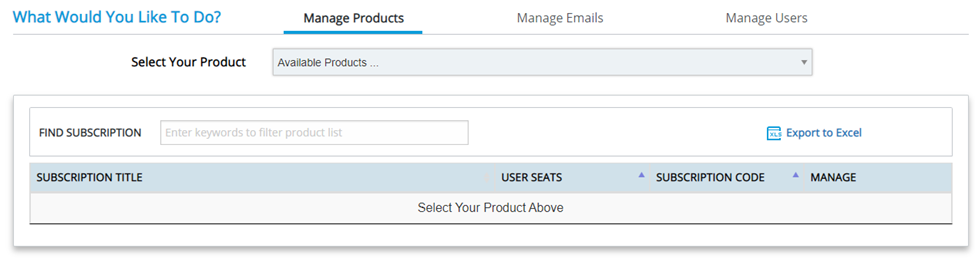

This will bring up a new panel with 2 ways to add new users.

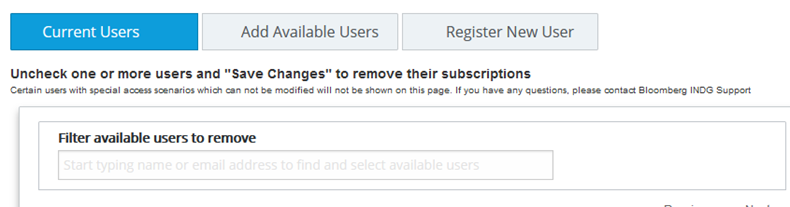
- If the user has already been created, but not given access to the subscription, they will appear under the Add Available Users tab. From that tab, you can search on the user you need to add, select the check box next to their name, and click Save Changes at the bottom. This will add the user to the subscription, and send an email with login instructions to the user.
- If it’s a brand new user, you will use the Register New User tab. This will present a form to provide all of the necessary information about the user. Only email, first and last name, and country are required, but providing the additional data could be helpful when running reports on the users currently setup with access.
If you experience problems setting up the user, please contact help@bloomberglaw.com
To remove a user:
There are 2 ways to remove a user from a subscription:
- From the Manage Products tab select the product you would like to update in the Select Your Product dropdown.
This will populate the subscription available to you. When it appears, click the Manage Users icon.
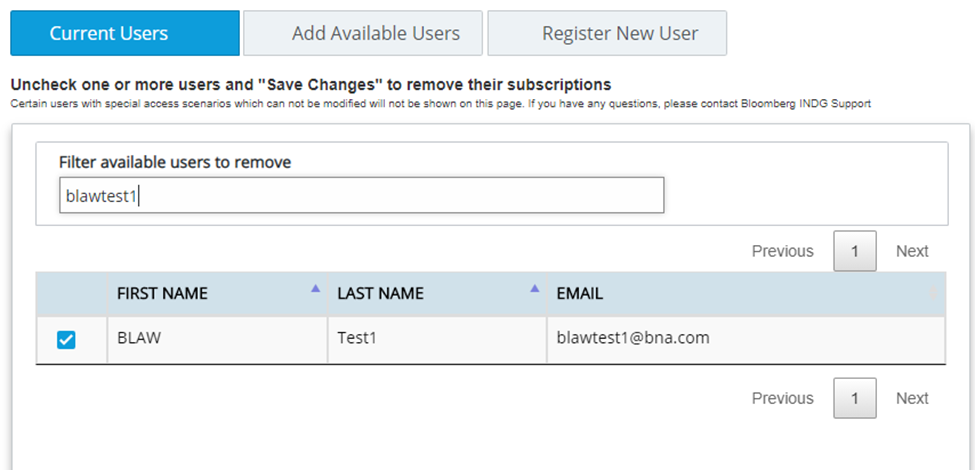
A new panel will open that will display all users currently activated against that subscription. Search on the name you would like to remove, and deselect the checkbox next to their name. Click Save Changes, and this user will have their access removed.

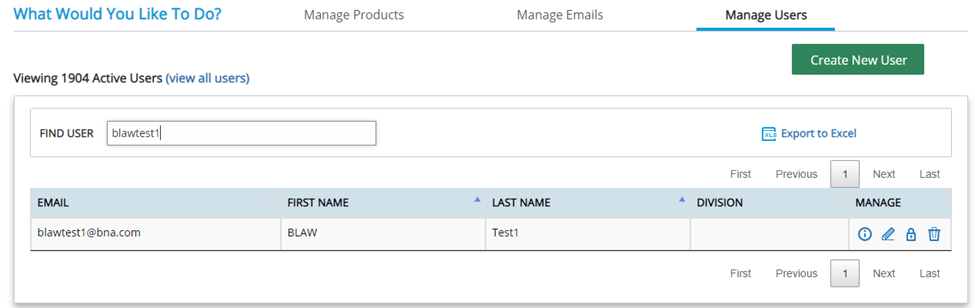
- From the Manage Users tab search for the user you need to remove.
Once you see the user, click the trashcan icon to delete this user. This will remove their access to all products and turn off any content-related emails they are currently getting.

A confirmation screen will appear. Click Delete to confirm the action.
Dashboard Legal User Management Tool
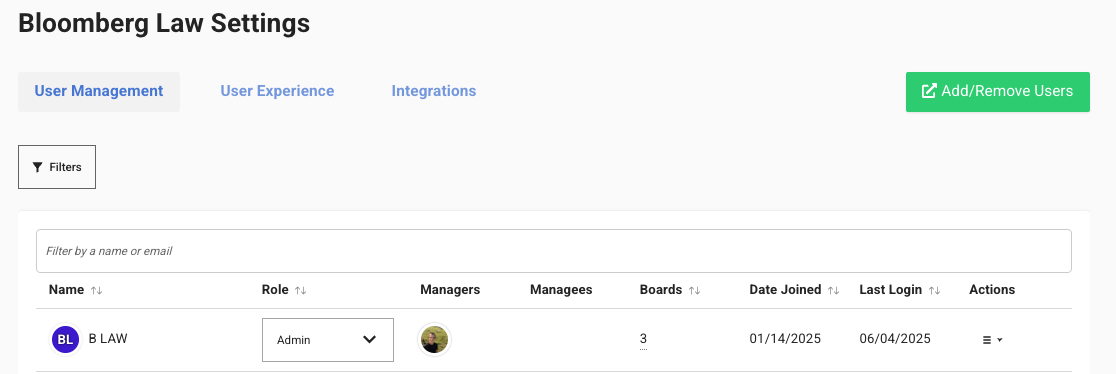
There is also a user management tool available within Dashboard Legal, which will let you assign further details to users, such as their role and managees within the organization.
This tool is accessible for admins within Dashboard Legal by opening the user menu (top right of the page), and clicking ‘Org Settings’.
You will be presented with the User Management tab by default, where you can view and modify all users within the organization.

Adding/Removing Users
You can visit the Customer Admin Portal by clicking the ‘Add/Remove Users’ button on the top-right of the page (see further details above).
Changing Roles
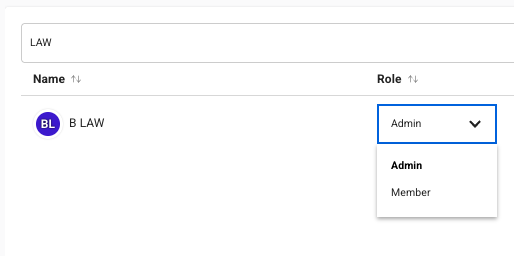
The role of each user can be modified using the Role dropdown under User Management.
Additional Actions
Under the Actions menu for each user, you can find additional operation such as deactivating/activating users, and editing managees.

Deactivating a user will prevent them from logging in, but will keep their user record in the system. If you would like to completely remove the user from the system, such that they are no longer using up a license, see ‘To remove a user’ above.