Configuring the iManage Integration

About the iManage Integration
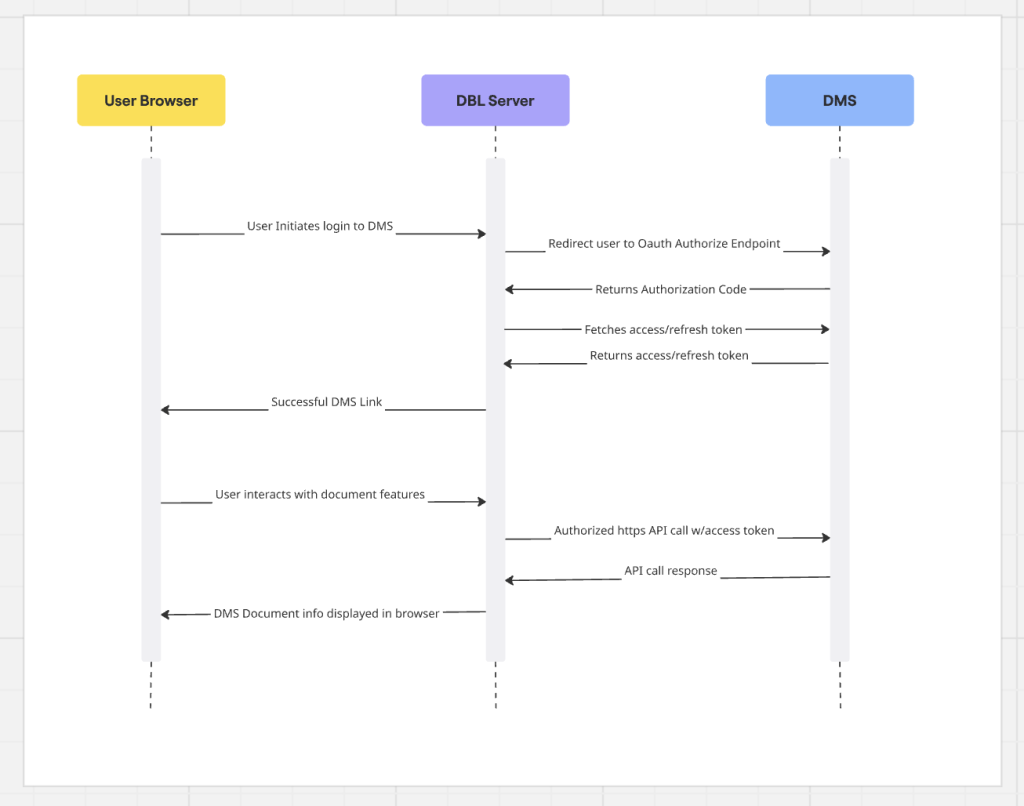
Dashboard Legal document features work seamlessly with your iManage (cloud or on-prem) DMS via a secure Oauth2 integration. To learn more about the end-user functionality of the iManage integration, please see the An Intro to documents and How to Manage Documents pages. The rest of this guide is for IT admins at your firm to configure the iManage integration.
Prerequisites for configuring iManage
- iManage 10 or above (cloud or on-prem)
- A DBL user with organization Owner/Admin privileges
- An iManage admin with access to the control center
- (on-prem only) Your DBL representative will send you a “manifest.yaml.zip” file which contains the integration configuration
- (on-prem only) If your iManage server has networking access controls, add our trusted IPs to your networking configuration
- (on-prem only) If your iManage server has as self-signed certificate, you’ll need the full-chain certificate handy
Configuring On-premise iManage
- Log into your iManage control center, and go to the Applications tab. Upload the “manifest.yaml.zip” application package that was provided to you.
- Enable the application for all of your users, and please set “Allow Refresh Token” to “Yes”
- Enable the iManage integration in DBL
- Log into DBL with an Owner/Admin and use the account dropdown to go to Organization Settings > Integrations.
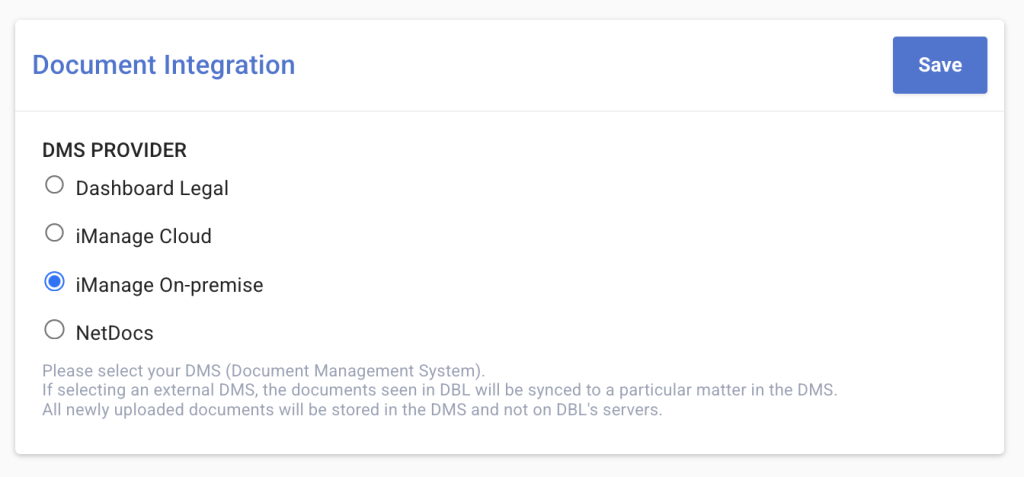
- Select “imanage On-premise” and press “Save”
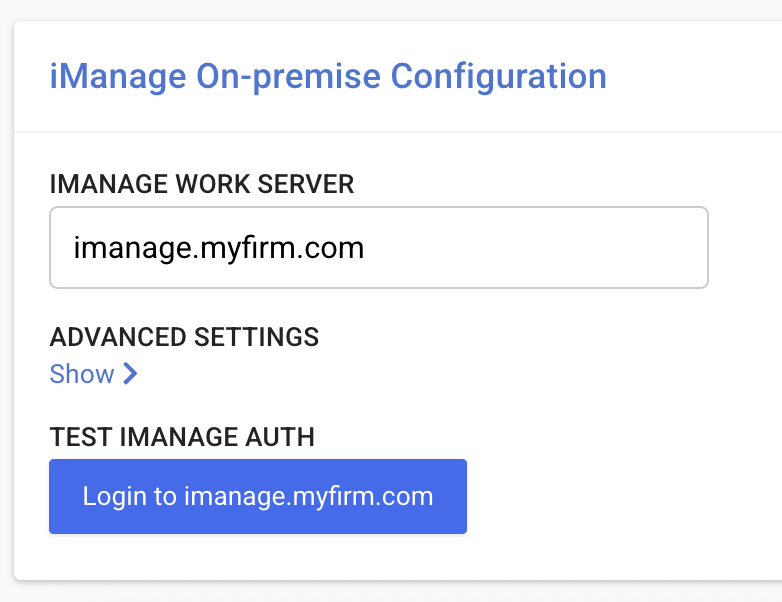
- Configure the “iManage On-premise Configuration” section
- Configure your iManage work server URL. This should look like “domain.com”, without any “https://” or additional path
- If you have a self-signed certificate necessary for your server, paste it in the “Advanced Settings” section
- Press “Save”

- Test the integration
- Press the button under “Test iManage Auth”. You will be taken to your iManage server to log in. Authenticate and accept permissions.
- If you see a green success message, you have completed the integration and can continue to the “What happens next section below”
- If you see a red error message, you likely either need to add our Trusted IPs to your allow-list, or configure the SSL certificate
Configuring Cloud iManage
- Log into your iManage control center, and go to the Applications tab.
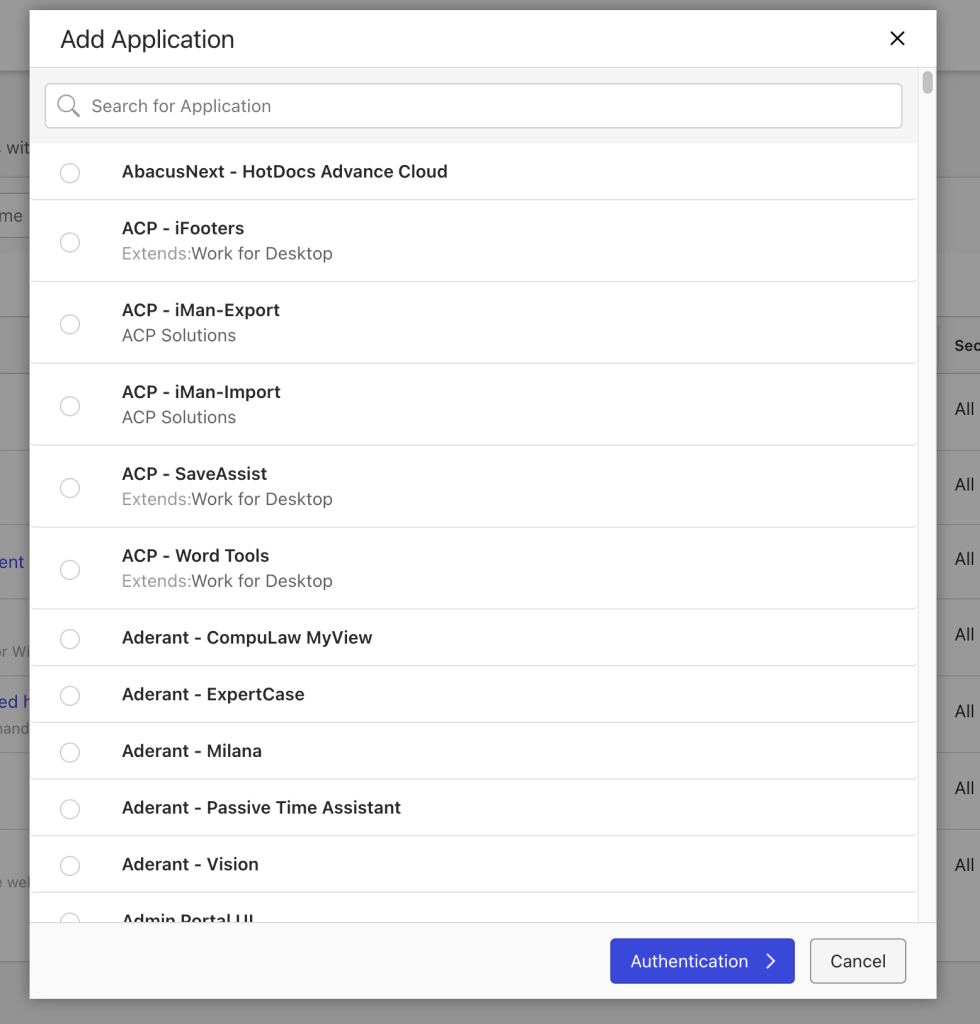
- Press “Add Application” and find Dashboard Legal
- Enable the application for all of your users, and please set “Allow Refresh Token” to “Yes”
- Enable the iManage integration in DBL
- Log into DBL with an Owner/Admin and use the account dropdown to go to Organization Settings > Integrations.
- Select “imanage On-premise” and press “Save”
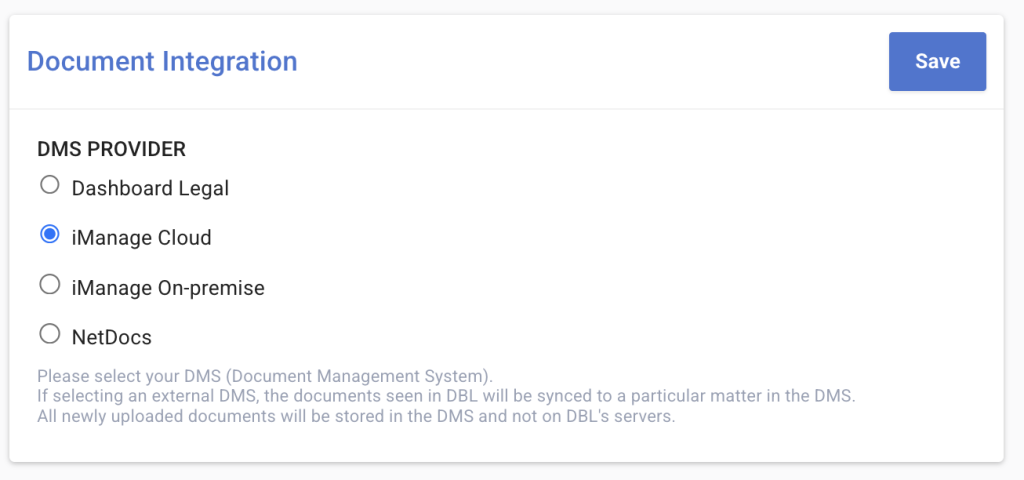
- Configure the “iManage Cloud Configuration” section
- Your iManage work server url is likely the default “cloudimanage.com”. If your iManage cloud server is on a different domain, configure the work server URL here. This should look like “yoursubdomain.cloudimanage.com”, without any “https://” or additional path
- Press “Save”
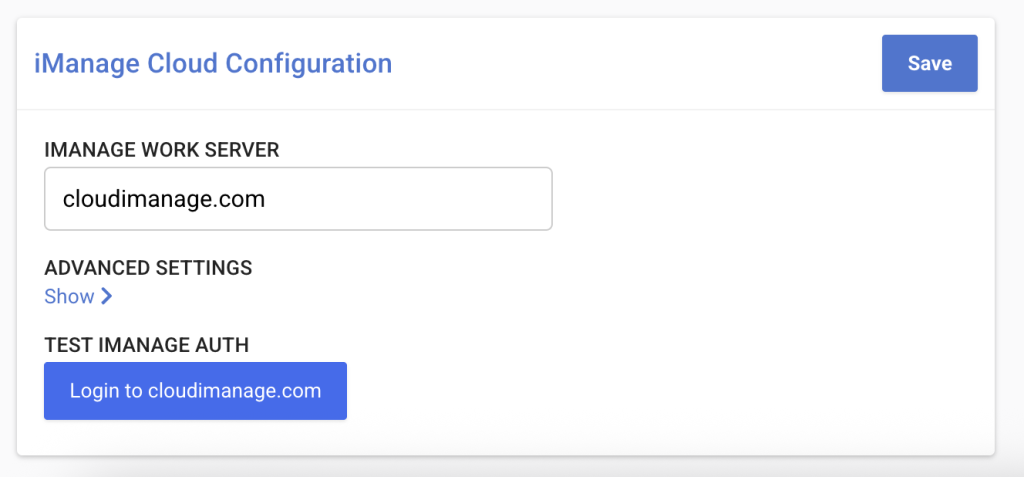
- Test the integration
- Press the button under “Test iManage Auth”. You will be taken to your iManage server to log in. Authenticate and accept permissions.
- If you see a green success message, you have completed the integration and can continue to the “What happens next section below”
- If you see a red error message, you likely either need to add our Trusted IPs to your allow-list, or configure the SSL certificate
What happens next
The iManage integration will enable your organization users to log into iManage via their account integrations settings page. The authentication is Oauth2-based, and after being redirected to iManage to enter their credentials, they will be able to view the same documents in Dashboard Legal as they would in the cloud iManage UI.
If a user has not linked their iManage account, they will not be able to see any documents in Dashboard Legal, but a message asking them to log in. The user should only have to log in once, but if they ever want to refresh their API token, or disconnect their iManage account, they may do so from their account integration page.
Please take a look at the how to guide for managing documents as a user or workstream admin.
Things to note about administering the iManage integration
- iManage matters are mapped to Dashboard Legal Workstream boards. In the settings for the board, board admins will find a dropdown to select the iManage matter for that workstream.
- Once linked, that matter’s documents will show up in the workstream board. An iManage matter can only be linked to one Dashboard Legal Workstream
- You can only set up one DMS integration at a time. If you go back to the organization integration settings and select “Dashboard Legal”, the workstream documents will source from Dashboard Legal’s DMS. Although it’s possible to toggle between various DMS providers, we’d recommend not doing that.
Networking Configuration
Your iManage server needs to accept https requests from the following trusted DBL IP addresses
- 3.216.106.22
- 50.16.89.87
- 34.194.112.116
- 34.215.146.24
- 34.211.19.80
- 44.233.49.140
- 3.133.176.193
- 3.15.81.45
- 18.116.255.130