External Checklists
What is an External Checklist?
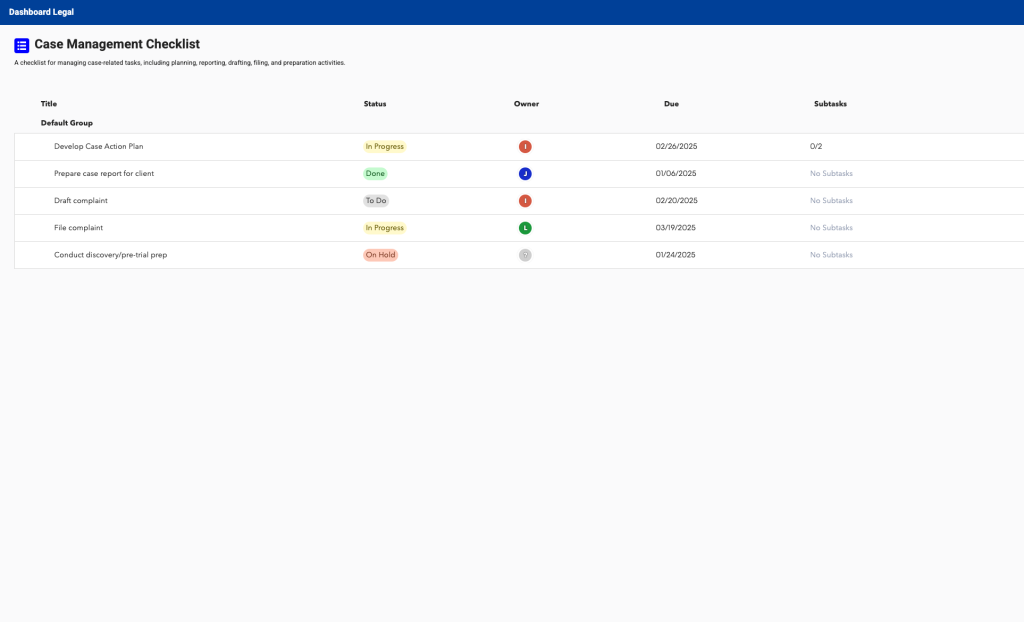
An External Checklist is a customizable view-only checklist that can be sent to anybody outside of your Dashboard Legal organization.
How can you share an External Checklist?
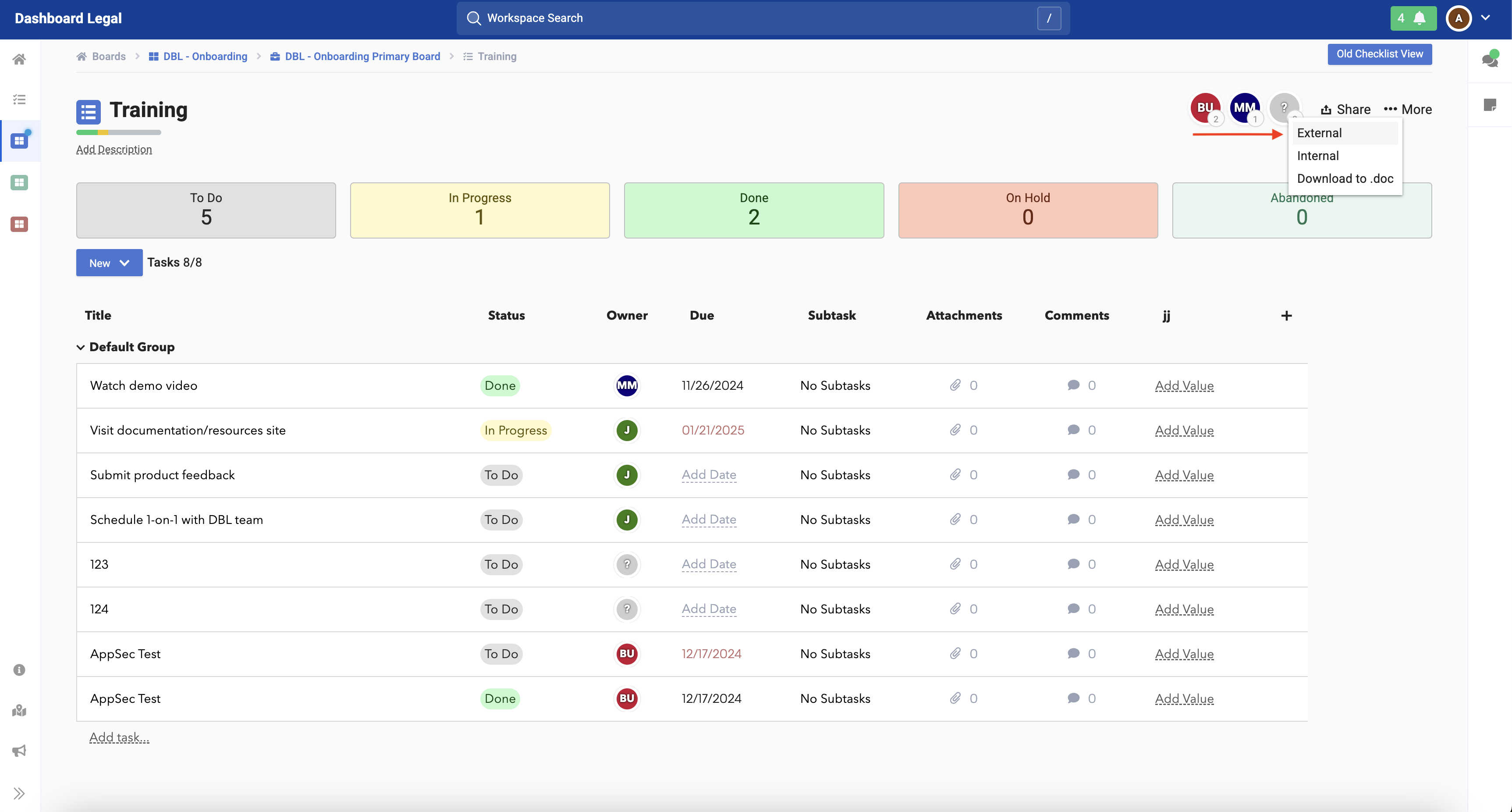
From the checklist view, you’ll hover over “Share”, and press “External” from the dropdown menu .
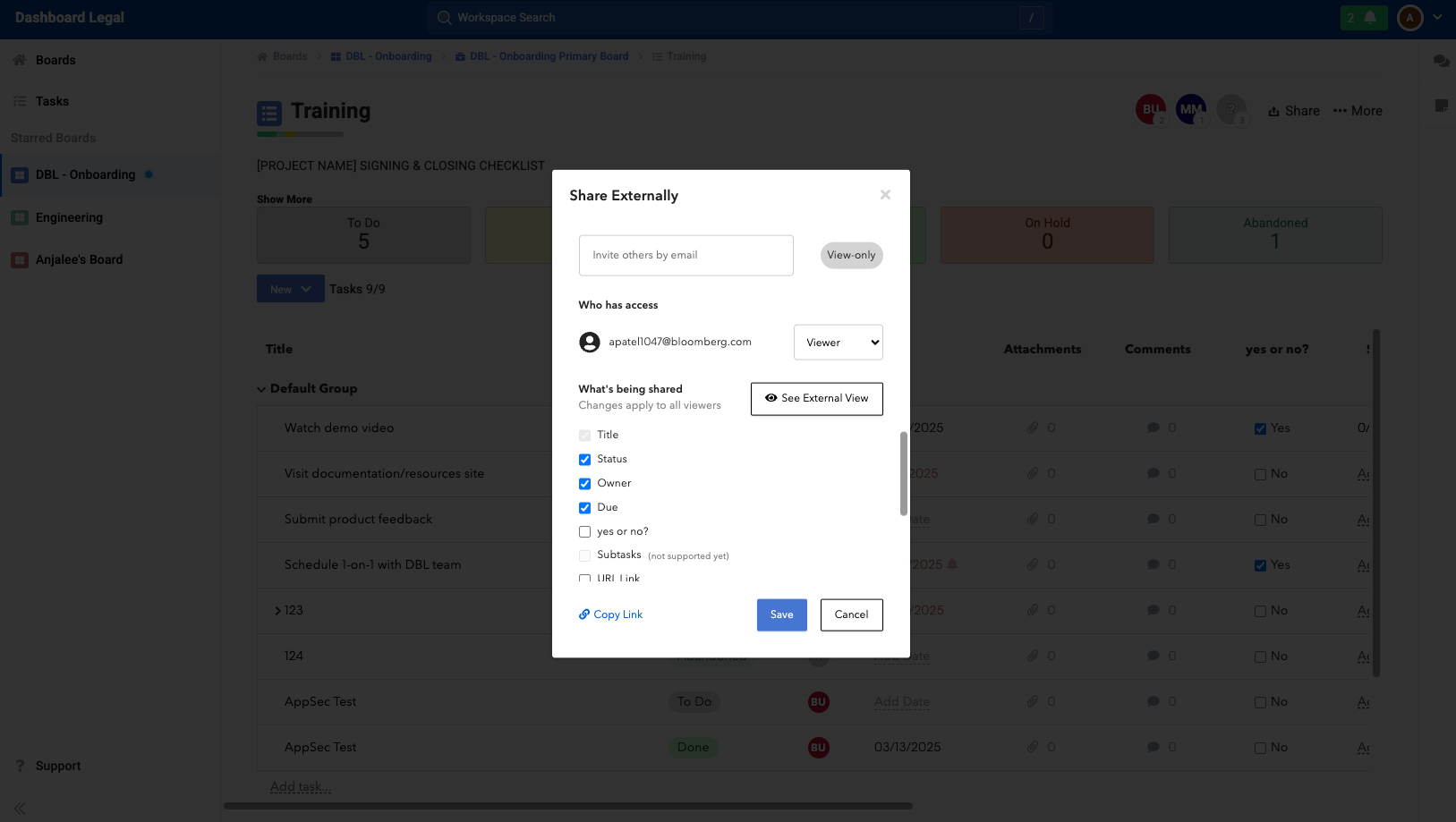
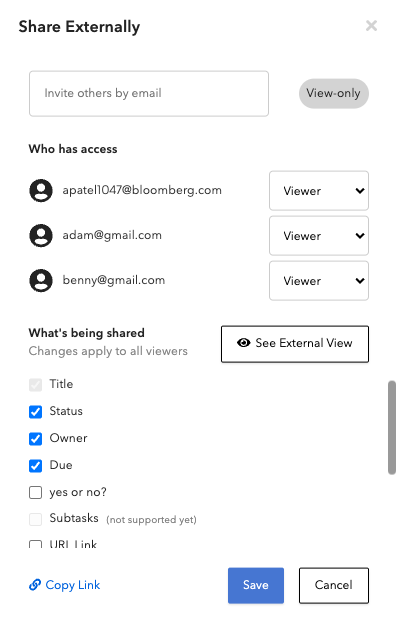
Clicking “External” will open up this modal.
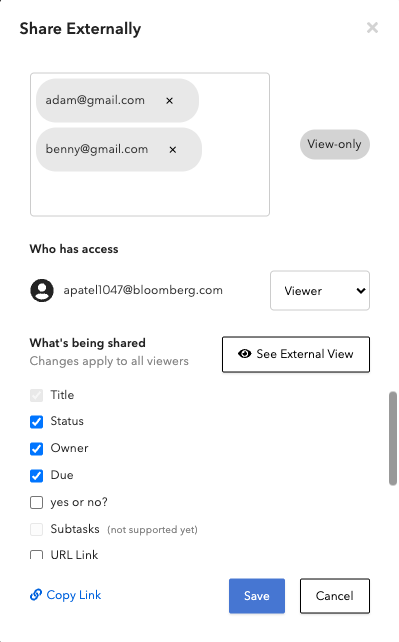
Type the emails of the individuals that you would like to share with – press enter between emails. Once you hit “Save,” the checklist will be shared with these users via email and they will show up under the “Who has Access” section.
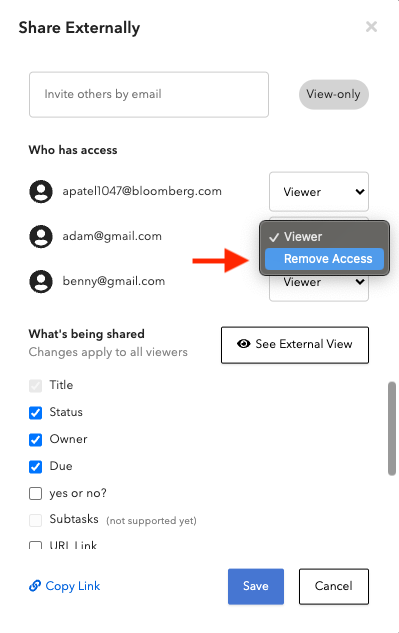
How can you remove a user from being able to view the external checklist?
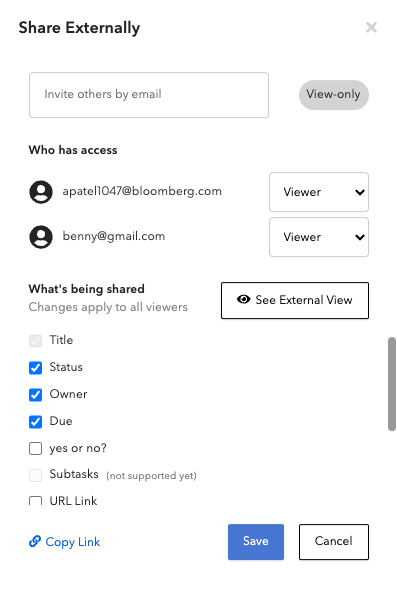
Click the dropdown menu next to the email of the user you’d like to remove, and hit “Remove Access.” Then hit “Save.”
How can you preview the external checklist?
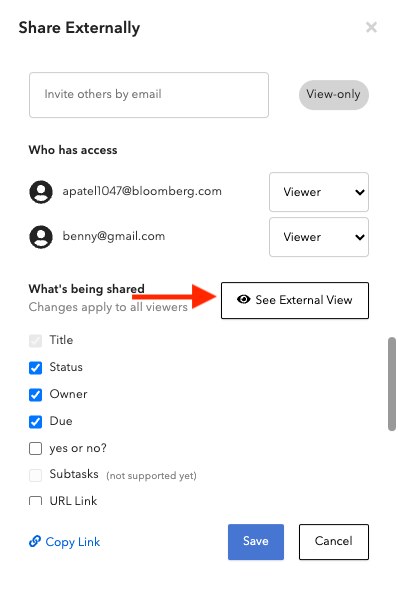
Click on the “See External View” button.
How can you adjust which columns external users will see?
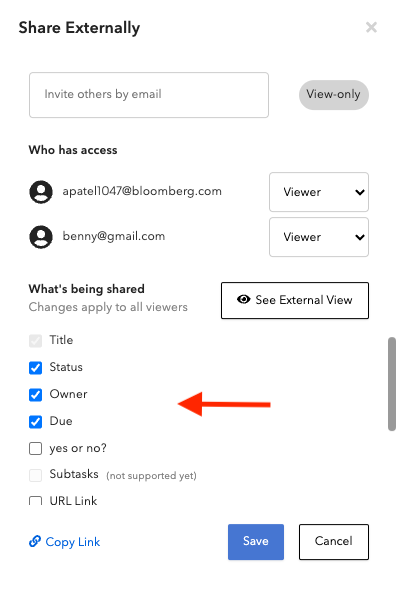
Head to the “What’s being shared” section in the modal. If the box next to a column name has been checked, it will be shown. If you uncheck it, it will not be shown in the External View. You can preview the External View (as shown above) as a sanity check. IMPORTANT: The column configuration in the “What’s being shared” section applies to ALL users that have been added as viewers to this checklist. At this time, we are not supporting Attachments and Comments in the external view.
How can you directly send someone the link to an External Checklist?
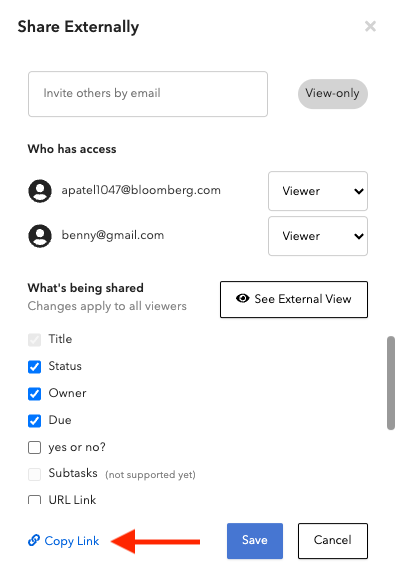
Click this copy link button, and hit Cmd+V to paste it wherever you need.
How can you include your custom columns in this External Checklist?
There’s no additional action needed from your end. If you have custom columns, those columns will automatically appear in the “What’s being Shared” section. From there, you can check/uncheck boxes based on what you want to be shown/hidden. IMPORTANT: At this time, we are not supporting DMS Documents and Subtasks in the External View.
How will external users access this checklist?
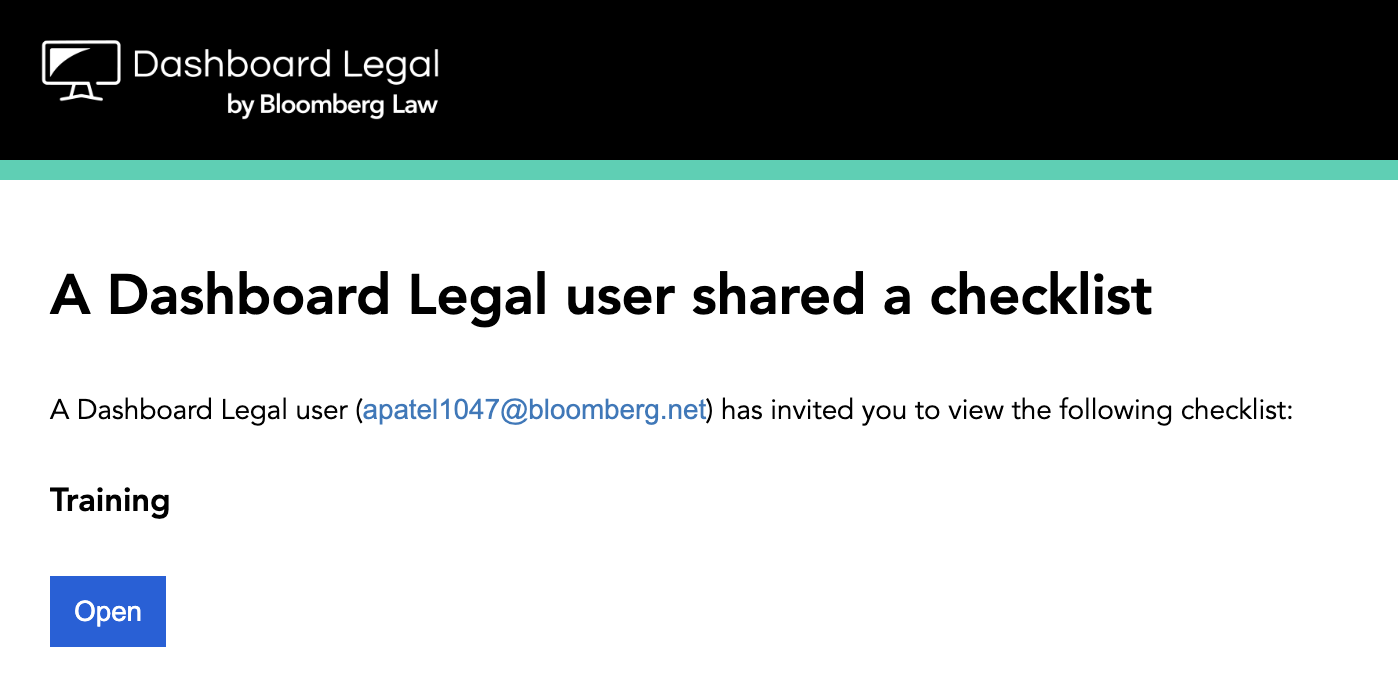
Once you share a checklist with someone, they will receive an email that look like this. When they click “Open,” it will take them to the checklist. This is the same link that you can grab from the “Copy Link” button on the modal (shown above).
It will take them to this page where they will enter their email.
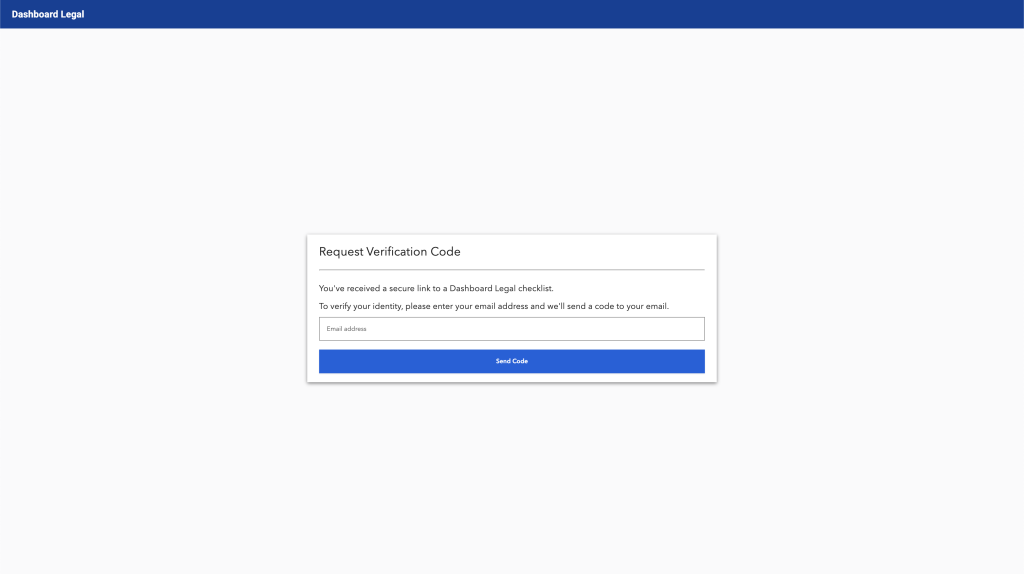
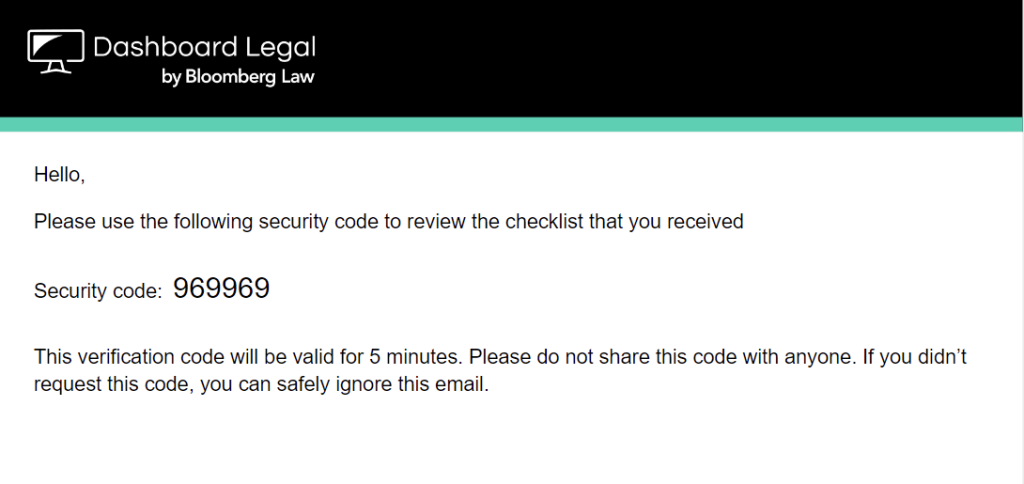
Once we verify that this checklist has been shared with them, we will send a verification code to their email:
After they correctly enter the verification code, they will be taken to the External Checklist.