Team View
The Team View in Dashboard Legal offers managers a comprehensive overview of their team’s workload and task progress enabling managers to gain quick and actionable insights into their overall team’s workload as well as the workload of individual contributors on their team. Note: only users designated as managers by their Organization Administrator will see the Team view. Organization Administrators have permission to designate who is a Manager in Dashboard Legal as well as the users on the team they manage.
Access: The Team view is located on the left menu just below Tasks.
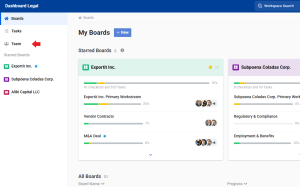
Display: Clicking on Team will take you to this page:
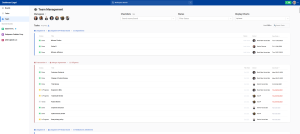
Key Features:
Managee Overview: Profile pictures of all your managees are displayed at the top, providing a quick visual reference of your team.
Task Summary: Represents the total number of tasks assigned to your team. This allows you to quickly understand how many tasks you’re currently focusing on in relation to the team’s overall workload.
Filtering Options:
- Managee Filter: Click on a managee’s profile picture to focus on their specific tasks.
- Checklists: Search for specific checklists to focus on particular projects.
- Status: Filter tasks by their current status (e.g., Done, In Progress, To Do).
- Display: Toggle between Tasks by displaying tasks by by Board, All Items (ordered by due date)and Show Chart view for data visualization.

Display Options Overview:
Board Display (default): Tasks are grouped by their respective boards, workstreams, and checklists to provide at-a-glance awareness of project status and deliverables.
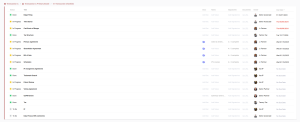
Al Items Display: Tasks are listed without grouping and ordered by due date as a default but can be re-sorted by clicking column titles above the task list.
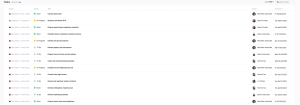
Show Chart Display: Task data from the Team view is automatically complied and displayed in three charts:
Boards: A stacked bar chart showing task distribution across different boards, color-coded by status.
Statuses: A donut chart displaying the overall distribution of task statuses.
Owners: A stacked bar chart showing task distribution among team members, color-coded by status.

Benefits:
- Comprehensive Team Overview: Get a holistic view of your team’s workload and progress across all projects.
- Visual Data Representation: Charts provide an immediate understanding of task distribution and progress.
- Efficient Resource Management: Identify overloaded or underutilized team members to balance workloads effectively.
- Project Progress Monitoring: Track the status of various projects and identify any bottlenecks or delays.
- Deadline Management: Easily spot upcoming or overdue tasks to ensure timely completion of projects.
- Performance Insights: Gain valuable insights into individual and team performance to inform coaching and support efforts.
- Individual Focus: Quickly assess and review the workload and progress of specific team members using the managee filter.
By effectively using both the list and chart views in the Team View, managers can gain a comprehensive understanding of their team’s performance, workload distribution, and project progress. This multi-faceted approach allows for both detailed task management and high-level strategic planning, ultimately leading to improved team productivity and project success.